CS 151 Fall 2023 Syllabus Labs/Projects
Project 1: What is a Shape?
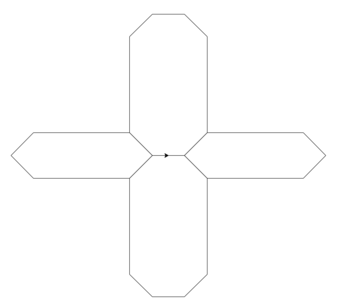
The purpose of this project is to give you chance to break down problems (such as drawing a logo) into precise steps that solve the problem (draw the logo). In other words, you will be developing algorithms. You will write your algorithms as sequences of Python turtle commands that make the turtle draw complex shapes for you.
The end result of the assignment should be a composition inspired by Hard Edge Painting. The scene can be as simple or complex as you like. What is important is to properly structure your code and include good comments.
The Components of a CS Project
All projects are graded out of 30 points and are composed of two required components and one optional component
- Project tasks (i.e. writing code, required for up to 21 points)
- Project report (the report on the Google Doc page, required for up to 5 points)
- Extensions (i.e. additional features and code that make your project unique and demonstrate additional learning, optional for up to 4 points).
We have designed the projects so that completing the required components demonstrates that you have learned the material related to this project. Completing them successfully indicates that you have earned a B on the project (26/30). This is a totally respectable grade, but if you wish to earn a higher grade, then you can do so by taking the initiative to complete extensions (described below).
Tasks
- Project 1: What is a Shape?
- The Components of a CS Project
- Tasks
- Check reproducibility
- Extensions
- Submission checklist
1. Set yourself up for the project
Store your CS151 projects in a safe place on your computer. We used your Desktop during lab, but ideally you should use a place that is backed up. If you computer crashes (happens to somebody every semester!), you still need a way to access your project code that you worked so hard on! I suggest keeping your CS151 labs and projects in Google Drive, Dropbox, or Microsoft OneDrive. That way, you have a backup stored in the cloud.
Create a directory there called Project01 (or move your existing Project01 folder from lab). For example, if you use Dropbox:
/Users/hewolfe/Dropbox/CS151/Project01
You can do this in Finder or Windows Explorer if you prefer. Recall from lab that the above path means that you have a folder in Dropbox called CS151 and inside that a folder for Project01. It is important to stay organized!
Open up VS Code. If you want to refer to code files you wrote in lab, you can open those, too.
Open the integrated Terminal in VS Code. Navigate to your Project01 folder (Use the folder icon drag trick!).
2. Invent a shape
It could be a cross, chair, polygon, etc. It should NOT be shapes we did in lab or in class (square, rectangle, hexagon, L-shape, triangle, or turtle's circle function). Keep in mind that the next task is to write Python code to make the turtle draw the shape (i.e. using forward, right, left, and possibly other commands). It may help to draw it out with paper and pencil first.
3. Create a Python program to draw your shape
- Write your code in a file called
shapeA.py. - It should follow the same basic format as the python file we made in lab, so make sure the first and last lines in
shapeA.pyare the same (the import and exit on click lines). - Run and test your program.
When you are satisfied, take a screenshot. This is Required Image 1 that you should include and describe in your report.
4. Create another shape
Repeat the steps from Task 3 to create another shape. Write your code in shapeB.py.
Take a screenshot. This is Required Image 2 that you should include and describe in your report.
5. Make a pattern using your two shapes
Make a new Python file called shapes.py. As the name implies, this file will have code that draws more than one shape.
Reminder: Include the import statement at the top of the file.
5a. Make functions for your two shapes
(i) Define your functions
Create two functions shapeA and shapeB in shapes.py that draw the respective shapes that you created in shapeA.py and shapeB.py. You should be able to simply copy and paste the code that you have already written, but remember to intent to commands in each function.
For example, I could define a function that draws a triangle by using the following code.
def triangle():
   forward(100)
   left(120)
   forward(100)
   left(120)
   forward(100)
   left(120)
(ii) Call your functions
Call functions at the bottom of your file, before the exitonclick() command. Remember that you can call a function in Python by using the function name followed by parentheses. For example, I could call the triangle function as follows:
def triangle():
   forward(100)
   left(120)
   forward(100)
   left(120)
   forward(100)
   left(120)

triangle()

exitonclick()
Note that the call to the triangle function is not indented and will therefore be executed by Python when you execute your file (i.e. python3 shapes.py).
Recall that the role of the final line of code is to keep the turtle window open until you are ready to click to let it go away.
You probably only want to call one of your functions each time you run your shapes.py program. Otherwise, turtle may scribble over your 1st shape when drawing the 2nd one! Remember the "commenting out" strategy (Cmd-/) from class to help you quickly switch which shape function gets called each time you run shapes.py.
(iii) Test your functions
Test your code (i.e. run it by typing python3 shapes.py in the Terminal).
5b. Create a new shape or pattern out of shapeA and shapeB
Create a shapeC function in shapes.py that calls both your shapeA and shapeB to draw those shapes. Use your creativity to come up with something that looks interesting, but here's a minimal example to give you an idea what this may look like:
def shapeC():
   shapeA()
   forward(100)
   shapeB()
In the example, to draw shapeC the turtle draws shapeA first then moves forward 100 units then draws shapeB. Remember, this is just a very simple example and you should do something different from this.
As in Task 5a, test out your shapeC function by calling it after all your functions are defined, but before the exitonclick() command, then running the program from the Terminal (Remember to comment out other function calls at the bottom so that only shapeC gets drawn).
When you are satisfied, take a screenshot. This is Required Image 3 that you should include and describe in your report.
6. Use parameters to control how your shapes are drawn
Right now, your shapes are drawn at one size. For example, the triangle function above always draws triangles with sides 100 units long. It would be nice to have your functions draw your shapes at many different sizes! In this task, you will add parameters to your functions to allow you to easily change different aspects of your shapes.
The following example shows how to control the triangle size with the distance parameter:
def triangle(distance):
   forward(distance)
   left(120)
   forward(distance)
   left(120)
   forward(distance)
   left(120)
6a. Make a function that draws a shape at any size
In shapes.py, create a shapeD function that draws a shape and has one or more parameters that controls the shape's size, just like in the triangle function above. The shape itself could be shapeA, shapeB, or a new one.
6b. Make a composition function that draws a shape multiple times with different parameter values
Make a composition inspired by Hard Edge Painting. Take a look at some of the examples and think about how the you could organize shapes in your image. In your report section called Art Reflection discuss which compositions/artists inspired you and what aspects of the compositions you emulated.
In shapes.py, create a composition function that calls the shapeD function at least 5 times with different parameter values. Depending on what aspect of your shape that your shapeC parameters control, calling composition could, for example, result in shapeD being drawn in multiple places at different sizes.
Test your code and when you're happy with how it looks, take a screenshot of what composition() draws. This is Required Image 4 that you should include and describe in your report.
Check reproducibility
In order to grade your project, we need to be able to run your code and get the same results as you do! Here is a summary of the expected outputs from each of the source code files that you created (i.e. by running python3 <filename>.py):
shapeA.py: Your "Shape A" that you designed.shapeB.py: Your "Shape B" that you designed.shapes.py: Your "composition", which is your "Shape D" drawn multiple times with different parameter values.
Extensions
Congratulations on completing the core tasks! Between the code that you’ve already written and the report that you write, you’ve already earned up to 26/30 points for this project.
The remaining 4/30 are a chance for you to earn credit for exploring parts of this project and digging deeper to express your creativity! This is entirely optional; 26/30 is a B/B+ and is a perfectly respectable place to stop. Extensions are open-ended and exist to compliment the structured core project. Explore and learn something new that interests you! Concentrating your energy on 1-2 "deep" extensions that challenge you will earn you more points than many small, "shallow" extensions.
To help us give you credit for your work, please add a section to your report called Extensions, in which you list which extensions you completed (could be ones you make up, not in the below list) and briefly explain how you designed and implemented them.
You can pick your own topics that interest you. Here are a few examples:
- Create some additional functions that draw different shapes. Create a function that calls all of them to make an interesting graphic.
- Write a function that will draw an N-gon. It should take in the distance of a side and the number of sides.
- Figure out how to have a set of instructions repeat a certain number of times.
- Build a hierarchy of functions. For example, suppose you already have a function shapeG that draws one shape. Make a new function shapeH that calls function shapeG multiple times, but in different places, so that you get multiple shapes. Then make another function shapeJ that calls shapeH multiple times. Go up one more level of complexity.
- Creative or complex scenes above and beyond the basic expectations count as extensions.
- Explore additional turtle functions that we have not talked about in lab or lecture yet. Use them in your shape design and patterns in creative ways!
Submission checklist
To turn in your project, make sure you do all of the following:
- Check the rubric in Google Classroom and make sure your report and code contain all the required parts.
- Connect to Filer and navigate to
/Courses/CS151_A_FA/<your username>/Private/Projects/<your username>_P01. - Make sure your lab code is inside
/Courses/CS151_A_FA/<your username>/Private/Projects/<your username>_P01/Lab_01. - Copy your latest project code inside
/Courses/CS151_A_FA/<your username>/Private/Projects/<your username>_P01. - Create a zip file of your folder
<your username>_P01. - Attach (drag) the zip file to the posted project assignment on Google Classroom.
- Click "Turn In" on the Project 1 assignment in Google Classroom.