CS 151 Fall 2023 Syllabus Labs/Projects
Lab 10: Event-based programming
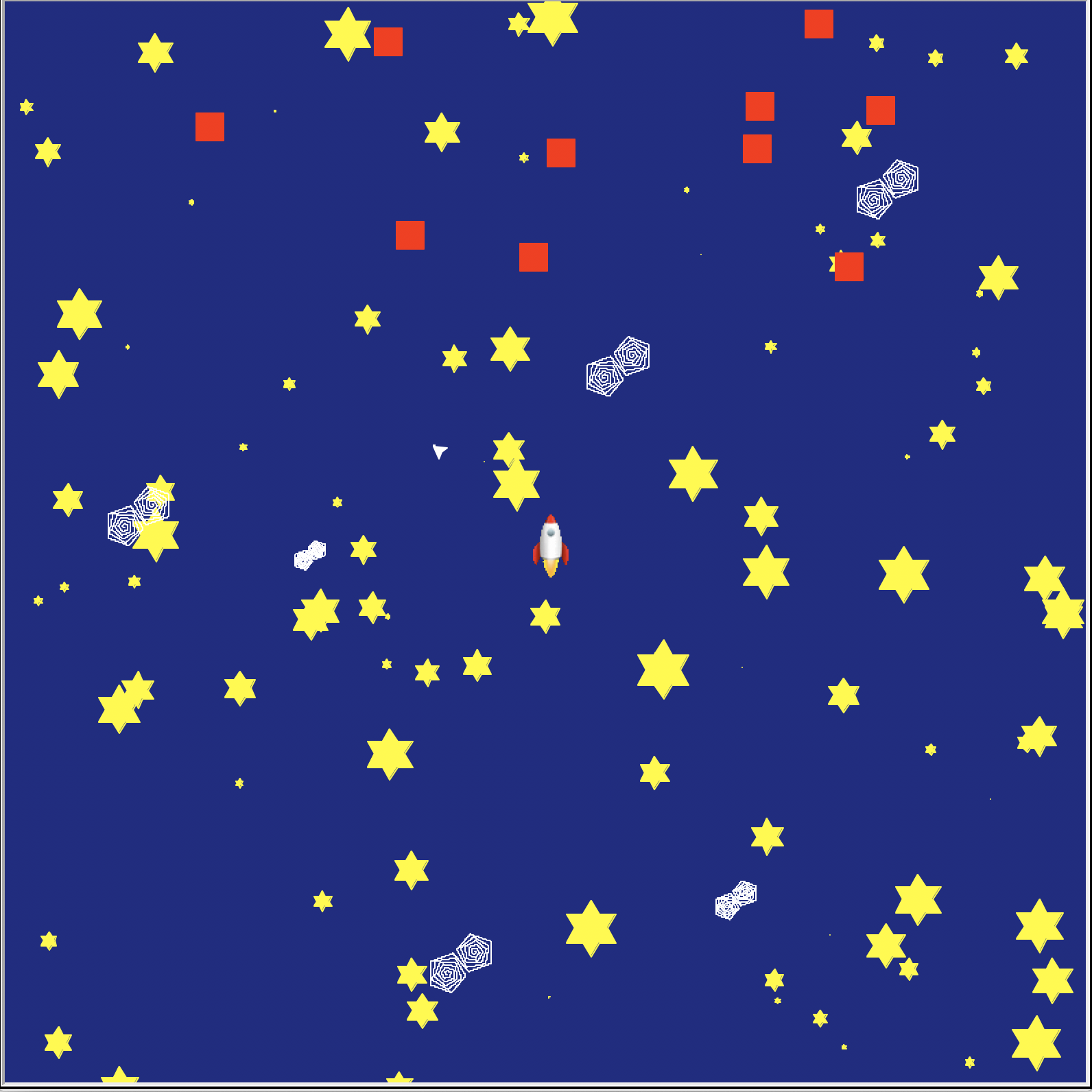
In this lab, you will explore event-based programming by creating a simple video game. Specifically, we will use callbacks, and keyboard button events.
- Lab 10: Event-based programming
Tasks
L0. The setup
Create a Lab10 folder on your computer where you store CS151 projects and labs, hopefully somewhere that is backed up (e.g. in Dropbox, Google Drive, Microsoft One Drive, etc.)
Open up a Terminal (e.g. Control+` in VS Code) and change the directory (cd) to the Lab10 folder.
L1. Make your Game class
L1a. Create the constructor
Create a new file asteroids.py and in it define a class called Game.
Create a constructor with no parameters other than the usual self. In it, write code that does the following:
- Outside of the constructor, create a global class variable for
Screenobject. - In the constructor, setup the
Screenclass variable's width and height to be 800 by 800 with the background color blue. - In the constructor, set the
Screenclass variable's mode to 'logo' and tracer to 0. - In the constructor, assign 20 to a
speedinstance variable. - In the constructor, assign 10 to an
turnRateinstance variable.
L1b. Create the play method
Copy-and-paste the following play method into your Game class. Fill it in according to the instructions in the comments. This is the method you will call when you want to start interactive gameplay.
def play(self):
    '''Starts the main game loop.
    '''

    # Call the listen method on your `Screen` class variable
    # so that keyboard presses are not registered as events

    # Call the update method on your `Screen` class variable

    # Call the mainloop method on your `Screen` class variable.
Create a main function outside the Game class that creates a Game object and calls the play method on it. Call the main function from top-level code in the usual if __name__ == '__main__' conditional statement.
Run asteroids.py. If everything is working so far, a blank screen should appear.
L2. Create a main player
Create a makePlayer method in Game. It should
- Create a
Turtleobject that will be the main player that will move under keyboard control. - Make your player turtle shape look like a spaceship:
- Download the rocketship image, save it into your lab folder.
- Add the following line of code to load in the rocketship image into the list of turtle available shapes (adapt the
Screenobject name as necessary):Game.screen.register_shape('rocketship.gif') - Call the
shapemethod on theTurtleobject to turn it into the rocketship. The name is given by a string of the image filename,'rocketship.gif'in this case. - In your file header credit the original author Brian Marks. Available at: https://blog.trinket.io/using-images-in-turtle-programs/.
- Pick the main player turtle's pen up and have it face northward.
- Return the
Turtleobject.

Call the makePlayer method from your constructor (after you create the background artwork), assigning the returned Turtle object to an instance variable called something like self.player.
Run your game. You should now see your rocketship in the scene.
L3. Control the main player and make the game interactive
In this task, you will make the player turtle (rocketship) move under keyboard control.
L3a. Parameterize the main player controls
Use the instance variables for player speed (units: pixels) and turn rate (units: degrees) in the Game constructor, giving them default values of 20 and 10, respectively.
L3b. Create movement methods
Create the following methods in Game (with no parameters other than self):
up: Move the playerTurtleobject forward by its speed and call updatedown: Move the playerTurtleobject backward by its speed and call updateleft: Turn the playerTurtleobject left by its turn rate and call updateright: Turn the playerTurtleobject right by its turn rate and call update
L3c. Create the setupEvents method
This method should be responsible for creating your game events. In the setupEvents method, you should:
- Add keyboard callback events to the four movement methods you just created. Here, callback means that we will instruct our game to move the player by calling one of movement methods when we press the appropriate keyboard button. To add a callback, we call the onkeypress method of the
Screenobject. It has the following syntax:Game.screen.onkey(<Method name>, <String of keyboard button>). For exampleGame.screen.onkeypress(self.up, "Up")will move the main player up with you press the up arrow key. To assign the three other arrow keys, use the strings: "Down", "Left", and "Right". - Add a callback to call the
Screenobject'sbyefunction when the user presses the "q" key (You could instead use the built-in Python functionquitthat we have used before, but theScreenobject'sbyeworks more reliably).
Call the setupEvents method at the end of the Game constructor.
Run your game. You should now be able to move your player around the scene with the arrow keys (and change the heading with the left/right keys)!
Notes:
- A common mistake when adding the keyboard callbacks is executing the method rather than passing along just the name. For example,
Game.screen.onkey(self.up, "Up"), notGame.screen.onkey(self.up(), "Up") - If you would prefer different controls, go ahead and change them!
- Unfortunately with the current version of Python, the turtle shape does not visually rotate as the heading changes.
L3d. Update turtle image on rotation
To have the rocket ship rotate, update makePlayer, moveRight and moveLeft to use multiple rocketship images. The idea would be that if the rocket turns by 10 degree intervals, then every time it turns change the shape of the rocket by choosing the associated file.
- Download the collection of rocketships zip file, and unzip it in your lab folder.
- Update
makePlayer, so thatrocketships/Rocketship0.gifthroughrocketships/Rocketship350.gifare registered as turtle shapes. - Update
moveRightandmoveLeft, so that the player's shape is set to the correctly rotated rocketship image. Determine the image name by calculating the current angle (350 - the player's heading). Use the corresponding image name as a parameter for the player'sshape method.
L4. Include a video of your interface in your report
In your screen recording demo moving the main player using key strokes. This is required documentation 1 in your report.
Document in your report how your control keys move the main player.
I suggest using the screen recording feature of Quicktime on macOS or Xbox Game Bar on Windows 10.
If you have trouble including the video in your Google Doc report, no problem, just include it in your project folder.
Get started with the project
Once you are done with each of the lab tasks, you may start on the project.