Lab 1a: Python and Coding Categorical Data
The purpose of this lab is to:
- ensure that Python and the required scientific computing modules are installed on your computer.
- refresh your memory of important Python constructs that will be used in Project 1.
- practice converting categorical data from a string-based to a int-based representation.
You will also practice submitting labs on Google Classroom in the expected format.
Tasks
L0. Getting your computer set up for CS251
If you have not already done so, install Python and other software required for CS251 on your computer.
L1. Python practice: dictionaries
Python dictionaries appear in Project 1 and are an important tool for data analysis and visualization. Recall that a dictionary is another name for a hash map or associative array. In this lab task, you will refresh your memory and practice using Python dictionaries with several simple examples. Here are some resources that may be helpful.
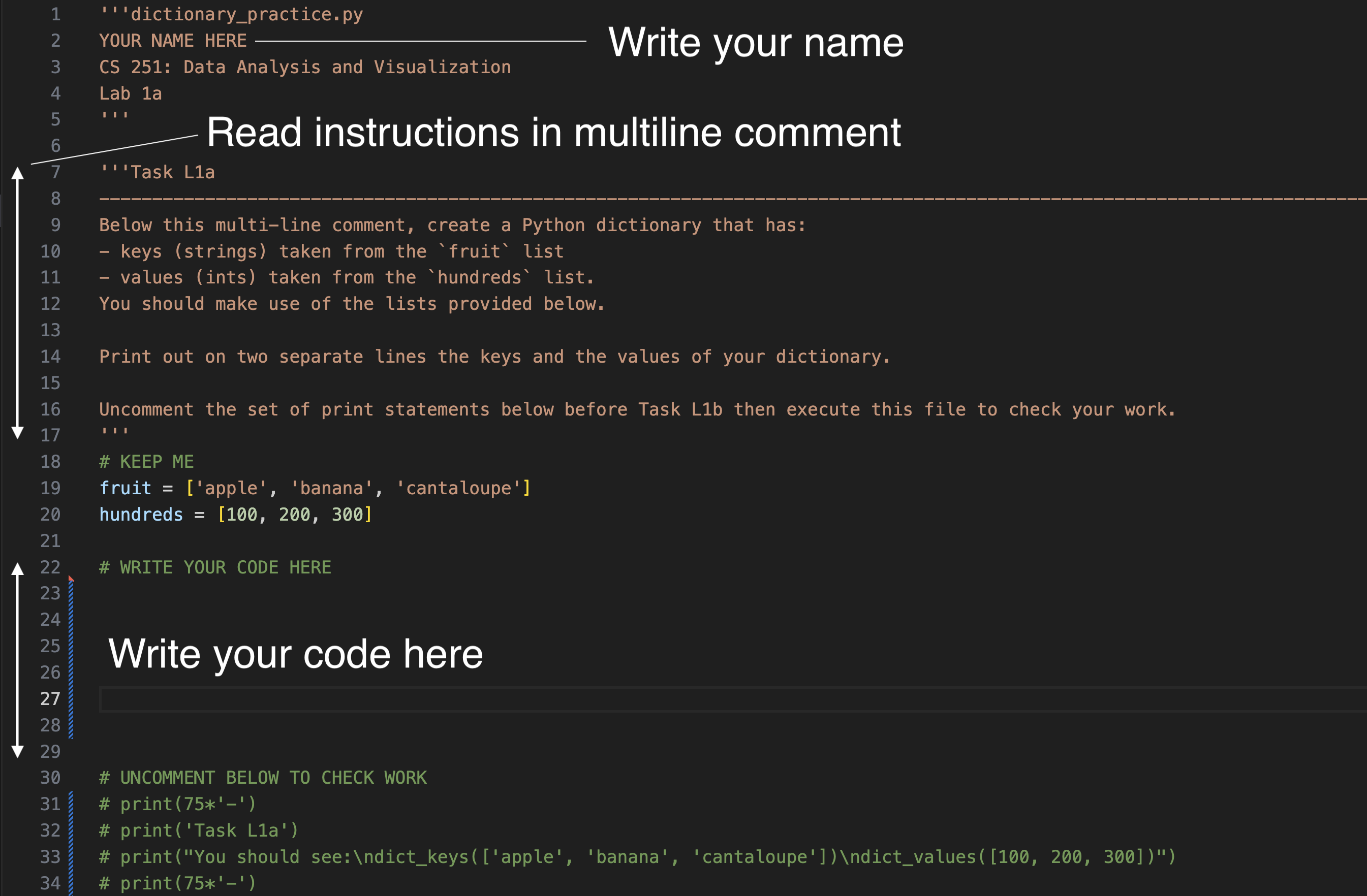
Create a folder for today's lab (e.g. Lab1a) in your computer. Download dictionary_practice.py and move it to your lab folder. Open the Python file in VS Code or the text editor of your choice. Write your name at the top of the file in the indicated location.
Follow the instructions and write your code underneath each multiline (triple-quote) comments.
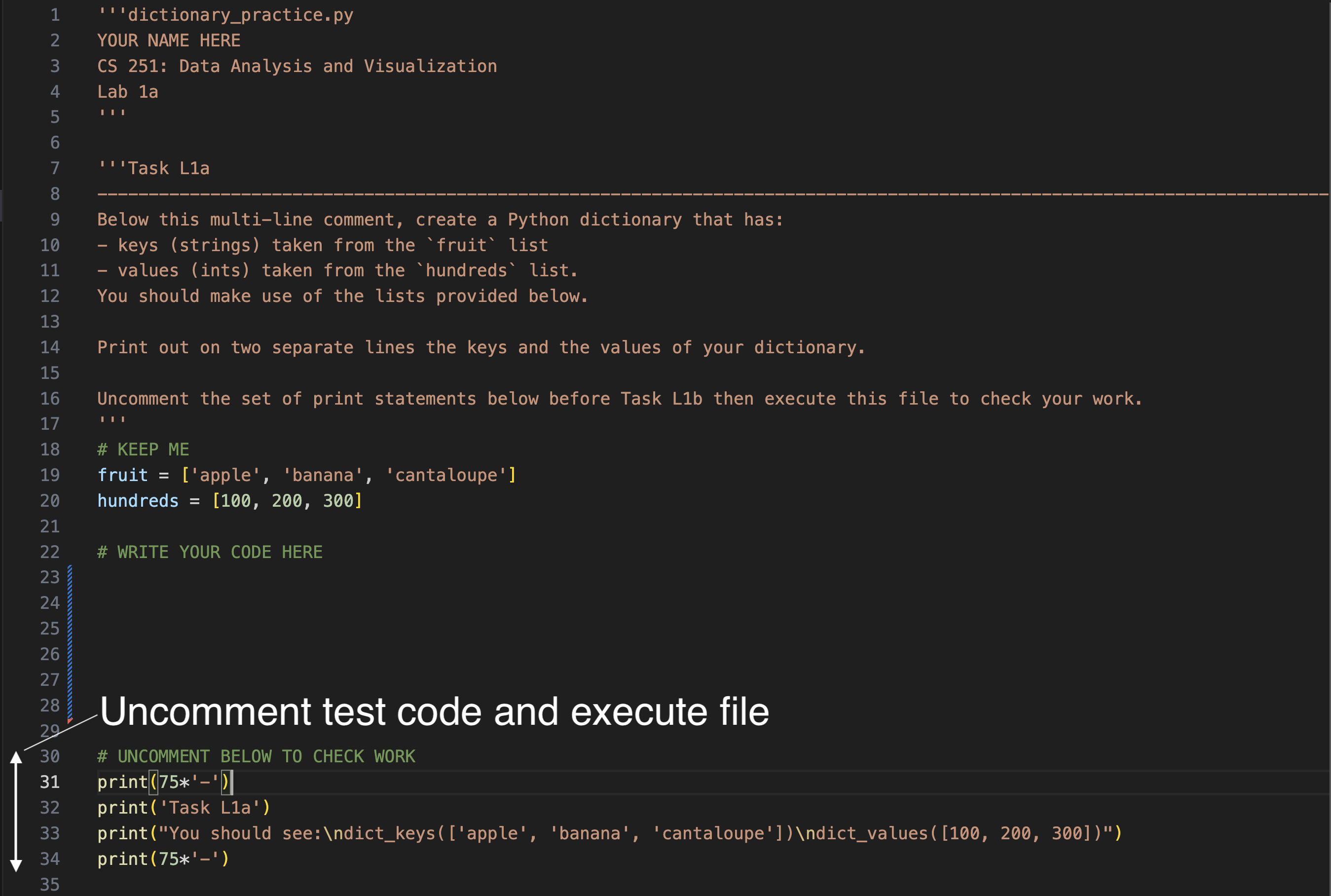
When you are ready to check your work, uncomment the print statements that have # in front of them at the bottom of the section. These print statements are test code provided to help you check the correctness of your implementation.
Run dictionary_practice.py to test out your code in each section before moving on. Recall in Python, this is accomplished by executing the following Terminal command:
python3 dictionary_practice.py
Windows users: Replace python3 with python in the above command.
L2. Python practice: reading from a CSV file
The goal of your Data class in Project 1 is to read in data stored in CSV files before you are able to begin your analysis. In this lab task, you will practice some of the steps that are involved.
Download csv_reader.py and move it to your lab folder. This file is a code template: similar to dictionary_practice.py, it contains multiline comments (docstrings in this case) that describe specific tasks in more detail. All the projects in CS251 this semester will make use of code templates, so let's get in the practice of using them!
Make a new folder inside your Lab1a folder called data.
Download lab_test.csv and move it to your data folder. Note: For simplicity, the CSV files in today's lab do not have header and type rows.
Open csv_reader.py and write your name at the top (you should always do this).
Write the read_csv function according to the instructions in the docstring. You should write your code underneath the docstring.
When you are ready to start testing your code, download and run the test code file read_csv_test.py. This provided file contains test code that will call your read_csv function and test out the code that you wrote. Fix any errors that you encounter before moving on. We grade your project with similar test code that we provide you.
L3. Coding categorical data as ints
This task involves reading in and processing a CSV file that contains data samples for 3 categorical variables. As in Project 1, your list of lists should store an int-based representation of the categorical data.
Please me know when you reach this point. We will discuss categorical data and the string-based vs. int-based coding strategy together as a class.
Download categorical.csv and move it to your data folder.
Copy your code from the read_csv function that you implemented in Task L2 constructor and paste it in the read_cat_csv function inside the file csv_reader.py.
Modify your code in the read_cat_csv function based on the goals outlined in the docstring.
When you are ready to test your code, download and run read_cat_csv_test.py. Fix any problems until your code passes the tests.
L4. Turn in your lab
Submit your lab on Google Classroom.
Lab and project submission format
When you are ready to submit your lab on Google Classroom, following the following steps:
- Place your lab in a folder whose name includes your Colby user name. For example, I would place my
Lab1afolder inside one calledowlayton. - Create a ZIP file out of the folder that has your Colby username in it. For example, mine would be called
owlayton.zip. - Upload your ZIP file to the assignment post on Google Classroom corresponding to the current lab (e.g.
Lab1afor today's lab).