CS 151 Fall 2025 Syllabus Labs/Projects
Lab 10: Abstract Classes and Top Down Design
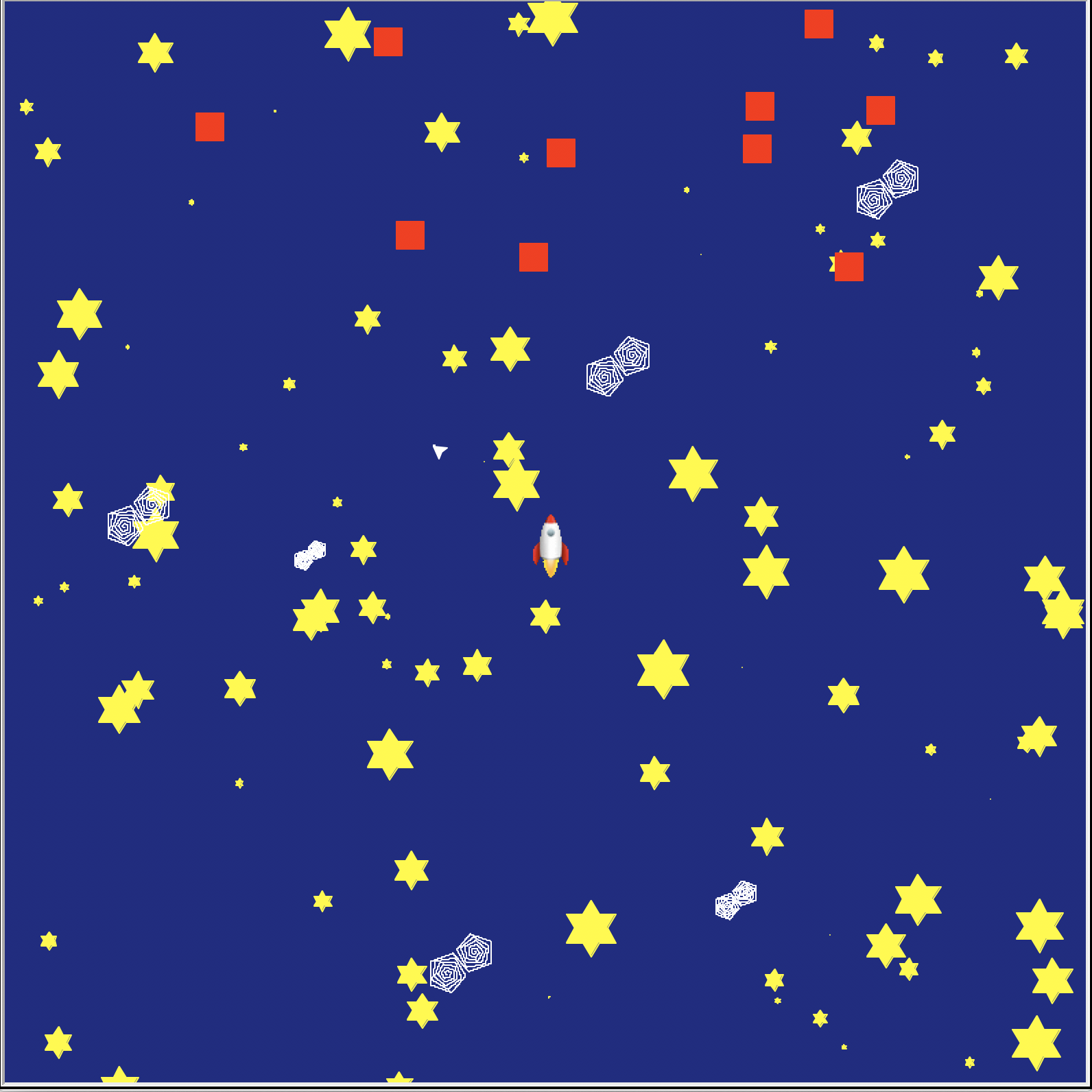
In this lab, you will design a program using top down design and implement an abstract class.
- Lab 10: Abstract Classes and Top Down Design
Tasks
L0. The Setup
Create a Project10 folder on your computer where you store CS151 projects and labs, hopefully somewhere that is backed up (e.g. in Dropbox, Google Drive, Microsoft One Drive, etc.)
Open up a Terminal (e.g. Control+` in VS Code) and change the directory (cd) to the Project10 folder.
L1. The Assignment
Implement a game other than Asteroids, using inheriting from the provided Abstract Class Game. The more detail, gameplay elements, and/or complexity the more extension credit. As usual, code organization and design play a big role and you should follow the standard best practices.
Your game should inherit from the Abstract Class Game. From a grading perspective, I should not see lots of duplicate code in Game and your other game class. Make use of inheritance and extend the basic game mechanics if it makes sense!
You can implement a standard game, a different game, or your own game.
Suggested Standard Games
You can choose to implement a standard game for up to 27/30 for the base game. To receive 30/30, you can add extensions.
Suggested Advanced Games
You can choose to implement an advanced game for up to 28.5/30 for the base game. To receive 30/30, you can add extensions.
Other games
You can choose to implement a game that is not listed above. Please meet with Professor Wolfe during their office hours to have your game approved. They will determine if it is a "standard" or "advanced" game.
Design your own game
You can choose to design your own game. Please meet with Professor Wolfe during their office hours to have your game approved. They will determine if it is a "standard" or "advanced" game.
L2. Make your Game class
Your game should inherit from the Abstract Class Game. Download a copy of the file and put it in your project directory.
Create a new file titled the name of your game [your game].py and in it define a class called [your game] which inherits from the Game class.
Read the Game class.
In your [your game] class, write method headers for all the abstract methods in the Game class. For each method add a print statement that prints the name of the method to the terminal.
Test your code. Create a main function where you create an instance of your class and call its play method. A black 800x800 pixel screen should appear.
L2a. Create the constructor
Write a constructor that will override the Game Abstract class' constructor. The constructor is where you will include any code that is setting up your program. At a minimum it should call the Game's' constructor with arguments for the title and a new background color.
Test your code. A 800x800 pixel screen should appear with the title and background color you provided.
L2b. Create a Title Screen
The Game class has an instance variable screen. That instance variable should be used for all turtle screen methods. The Game class has a instance variable called drawer that is a turtle. Use the drawer to draw the following on the screen.
Update your titleScreen method to fulfill the following requirements:
- Use the instance variable
drawerto write the name of your game on the screen. - Use the instance variable
drawerand the subclassButtonto create a start button that callscreateGameScreenwhen clicked. - Use the instance variable
drawerand the subclassButtonto create a quit button that callsself.screen.bye()when clicked.
Test your code. A 800x800 pixel screen should appear with the title and background color you provided. On the screen should be the title of the game and 2 buttons. When you click the start button "createGameScreen" should be printed to the terminal. When you click the quit button the screen should close.
L2c. Implement the createGameScreen method
Update your createGameScreen method to fulfill the following requirements:
- Call the
Gameclass methodself.clear. This should clear the buttons and title from the screen. - Set the screen's background color to a different color than your start screen.
- Call
createGameScreenEvents.
Test your code. When you click the start button "createGameScreen" the buttons should disapear from the screen, the background color should change and "createGameScreenEvents" should print to the terminal.
L2d. Implement the createMainPlayer method
Update your createMainPlayer method to fulfill the following requirements:
- Create a turtle as a local variable.
- Change the turtle's shape and color to something different from the background color.
- Pick up the turtle's pen.
- Return the turtle.
Update your createGameScreen method to create an instance variable player using your createMainPlayer method.
Test your code. When you click the start button your player turtle should appear.
L2e. Implement the createGameScreenEvents method
This is where you would write the event callbacks for your game. For right now, create a timer that will call createResultScreen after 5 seconds. When you implement your game, you should call createResultScreen when the game ends.
Test your code. When you click the start button and wait 5 seconds "createResultScreen" should print to the terminal.
L2f. Implement the createResultScreen method
This is where you would draw your results screen.
Update your createResultScreen method to fulfill the following requirements:
- Call the
Gameclass methodself.clear. This should clear anything that was drawn to the screen using thedrawerinstance variable. - Hide the
playerturtle. - Set the screen's background color to a different color than your game screen.
Test your code. When you click the start button and wait 5 seconds the player should disapear and screen change to the results screen's background color.
L3. Update Start Screen with Instructions
How will someone play your game? Does it involve using specific key presses or clicking on specific buttons or areas of the screen? Plan out the interface for the game.
Update your start screen so there are instructions on how to play the game.
Check-in Report, Video and Submission
Written Report
Your check-in report should include:
- Title The title of your game and a header.
- Description Describe the game. Explain how the game is played and what the rules are. Include links to relevant resources about the game.
- Top-Down Design Diagram Using top-down design, design your game. What methods have you already implemented and how are they connected? What other methods are necessary to complete your game? Your design does not need to be "final", but you should at least roughly outline the main game elements before driving in.
- Sources Any references used for the game, as well as people you received help from on the project.
Video
Include in your check-in submission a maximum 60 seconds screen recording video of you showing what you have implemented so far. This should include the start screen with instructions, game screen, and results screen.
Submission
Upload and submit your code, video and report on Google Classroom.
Get started with the project
Once you are done with each of the check-in tasks, you may start on the project.