CS 151 Fall 2025 Syllabus Labs/Projects
Project Reports
The Components of a CS Project
All projects are graded out of 30 points and are composed of two required components and one optional component
- Project tasks (i.e. writing code, required for up to 20 points)
- Project report (the report on the Google Doc page, required for up to 5 points)
- Submission On-time (1 point if submitted by the first deadline).
- Extensions (i.e. additional features and code that make your project unique and demonstrate additional learning, optional for up to 3 points).
We have designed the projects so that completing the required components demonstrates that you have learned the material related to this project. Completing them successfully indicates that you have earned a B on the project (26/30). This is a totally respectable grade, but if you wish to earn a higher grade, then you can do so by taking the initiative to turn in your project on time and complete extensions.
Create Your Report
- Log onto Google Classroom, then navigate to our CS151 class webpage.
- At the top of the Google Classroom webpage, click "Classwork", click on the current assignment under Projects, then click "View Assignment".
- Read the instructions and click "Add or create" on the right side and select Google Doc to start writing your report.
- This should open a new Google Doc. Give your report a meaningful title like "[NAME]'s CS151 [PROJECT] [#]: [PROJECT TITLE]".
- At the top of the page there should be a header with your name, the date and the class.
- Add sections that should be in every CS151 report: Abstract, Results, Art Reflection, Conclusion, AI Usage Statement and Acknowledgments.
- In all of you project reports, you will need to include pictures of the images you created with your program. Drag in your screenshots of your work from your desktop into the Report section of the Google Doc. Resize/crop/format the image as necessary in your report.
- Always create a caption under your images describing what it is and how it was made.
Report Expectations
Your intended audience for your report is your peers not in the class. From week to week you can assume your audience has read your prior reports. Your goal should be to be able to use it to explain to friends what you accomplished in this project and to give them a sense of how you did it.
Your project report should contain the following elements.
Abstract
A brief summary of the project, in your own words. This should be no more than a few sentences. Give the reader context and identify the key purpose of the assignment.Writing an effective abstract is an important skill. Consider the following questions while writing it.
- Does it describe the CS concepts of the project (e.g. writing well-organized and efficient code)?
- Does it describe the specific project application?
- Does it describe your the solution or how it was developed (e.g. what code did you write/circuits did you build)?
- Does it describe the results or outputs (e.g. did your code work as expected)?
- Is it concise?
- Are all of the terms well-defined?
- Does it read logically and in the proper order?
Results
Images (including all of the required images) showing what you created, alongside a description of what each image is and how you designed/created it with code.Art Reflection
Write a few sentences (1-3) about which artist or artwork inspired your composition(s) and how it influenced your design decisions.Conclusion
A brief description (1-3 sentences) of what you learned. Think about the answer to this question in terms of the stated purpose of the project. What are some specific things you had to learn or discover in order to complete the project?Extensions
A description of any extensions you undertook, including text output or images demonstrating those extensions. If you added any modules, functions, or other design components, note their structure and the algorithms you used.- A description of your extension and how it fulfills one of the above tasks.
- A screen shot (or multiple) of your extension.
- An explanation of how you implemented your extension.
AI Usage Statement
A statement on if you used AI on this project. A reflection on how you used AI for the project including software used. If you did not use AI for this project, reflect on how you may have used AI in general this past week. Include all prompts that you used and how you incorporated them into your project or report.Acknowledgments
A list of website you used and people you worked with, including TAs and professors. Include in that list anyone whose code you may have seen, such as those of friends who have taken the course in a previous semester.
Submitting a project
Make sure that your lab folder is within your project folder.
Rename your project folder to include your Colby username. For example, I would name mine hewolfe_Project01
Create a zip file of your project:
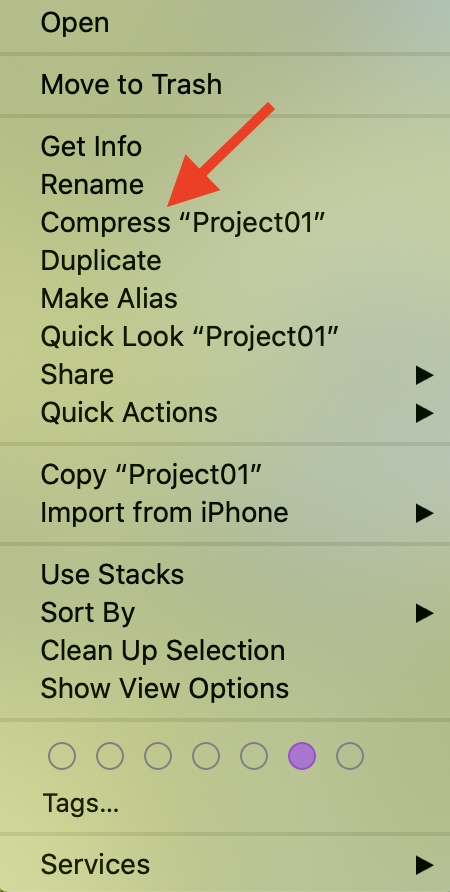
macOS: Right-click the project folder (e.g. hewolfe_Project01) and click Compress "hewolfe_Project01".
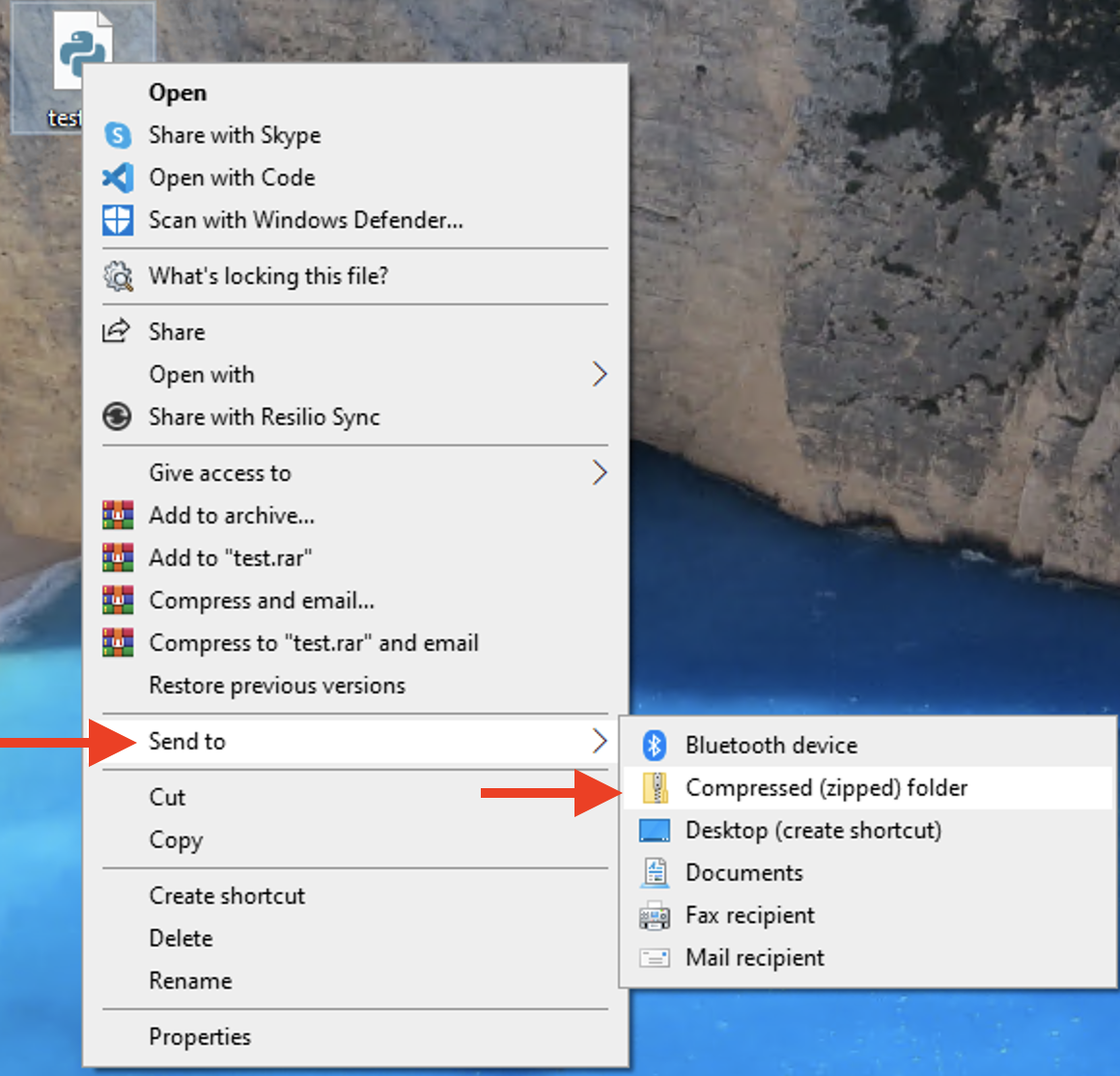
Windows: Right-click the project folder (e.g. hewolfe_Project01) and click "Compressed (zipped) folder" in the "Send to" menu.
In the assignment on Google Classroom, click "+ Add or create" > click "File" > click the "UPLOAD" tab > drag in your .ZIP folder. It should upload and bring you back to the assignment page. It may ask you if you turn in your Google Doc project report, .ZIP file, and rubric. You can click "Turn in". If you don't want to submit yet, click "Cancel", it will bring you back to the assignment page again. You can always click the "Turn in" button on the right whenever you are ready.
Click "Turn in" to officially submit your project!