CS 151 Fall 2026 Syllabus Labs/Projects
Lab 0: Getting your computer ready for CS151
Follow the tasks below to install three pieces of free software on your computer that you will need for CS151:
- Zoom (with screen sharing enabled)
- Python
- Sublime Text.
You will find step-by-step instructions below to get up and running, whether you have a Mac or Windows PC.
- Lab 0: Getting your computer ready for CS151
Tasks
L1. Zoom
You should install the Zoom app on your computer and set it up to be able to get hands-on, interactive help during office hours.
L1a. Install Zoom
Download Zoom to your computer and install it (you want "Zoom Client for Meetings").
L1b. Turn on screen-sharing (Mac users only)
Follow these instructions to get your camera, your microphone, and (important) screen sharing enabled.
These instructions assume that you know how to get to macOS System Preferences. The following screenshots show you how to get there.
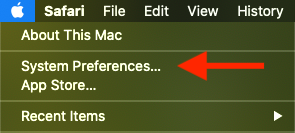
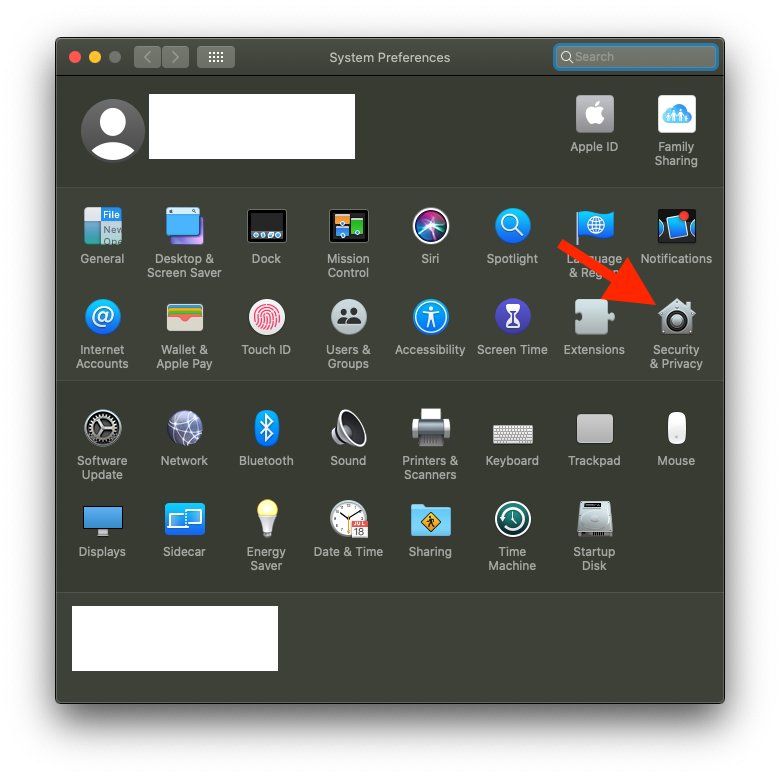
After clicking on "Security and Privacy", click on the "Privacy" tab on the top to get to where the Zoom website instructions begin.
L2. Python
In this class, we are using the Python 3.13 programming language. It is important that you follow these directions to make sure that everyone has the right version installed. Here are instructions for both Mac and Windows users.
L2a. Install Python (macOS)
- Download Python 3.13 from python.org.
- Open the downloaded file called
python-3.13.15-macos11.pkg(you might not see the .pkg part and that's ok). The file should be in your Downloads folder. - Click the Continue buttons several times.
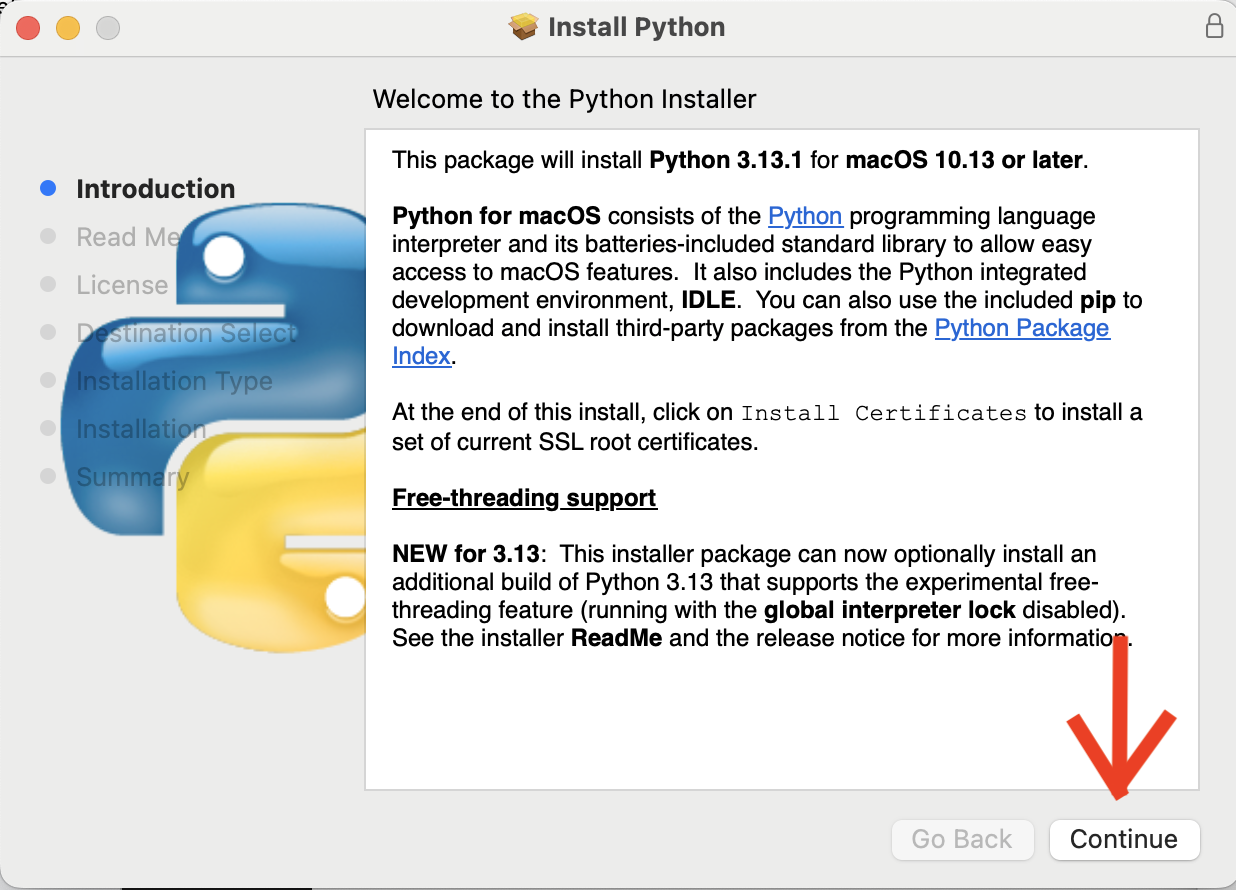
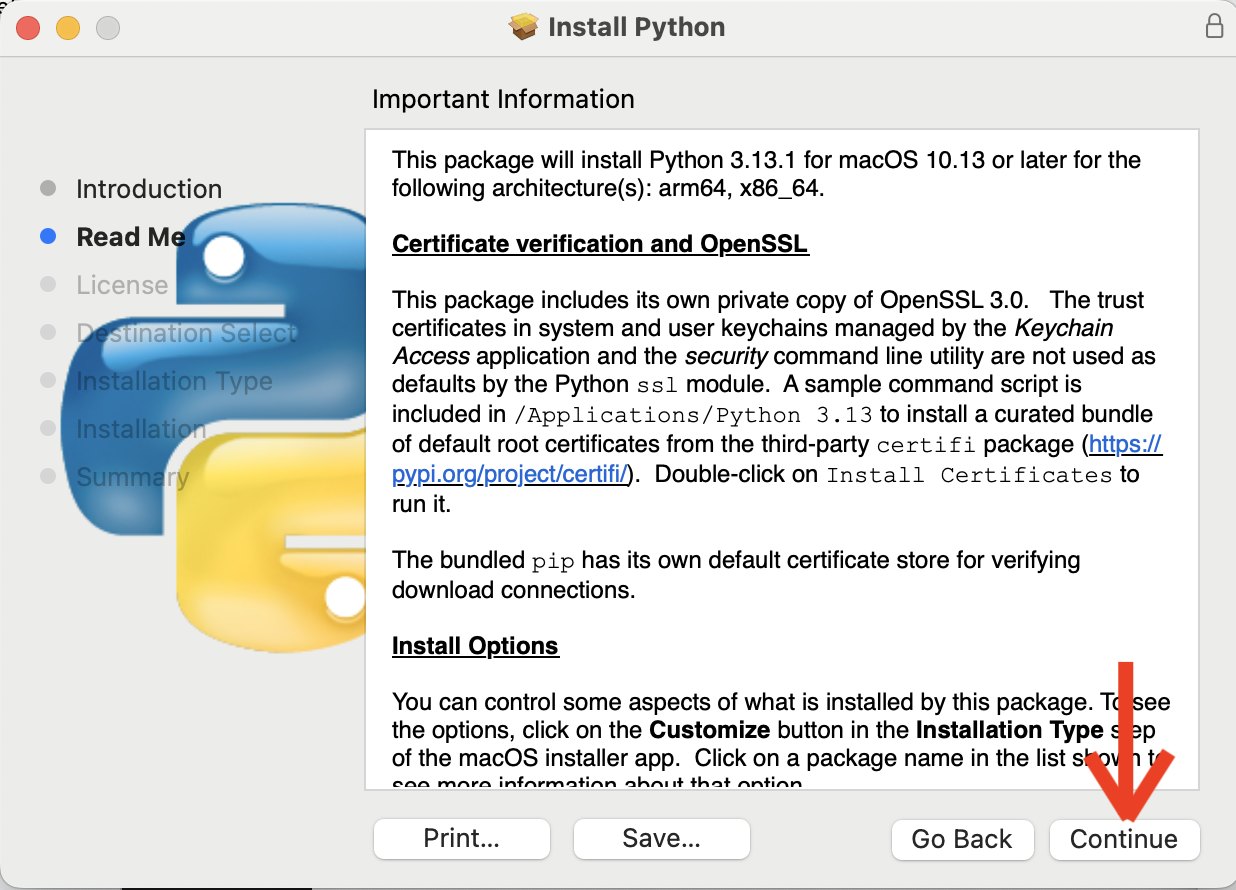
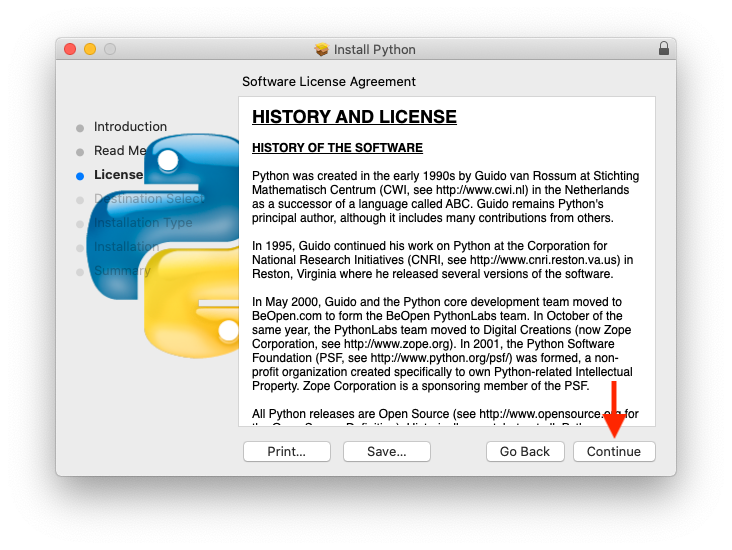
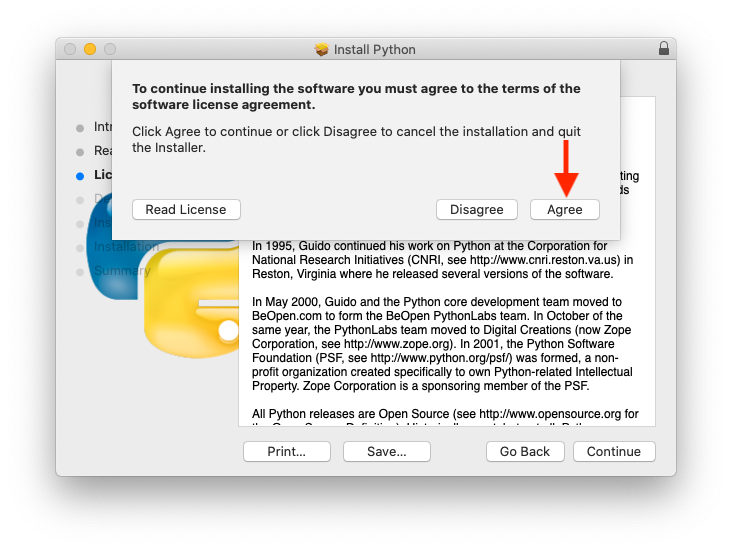
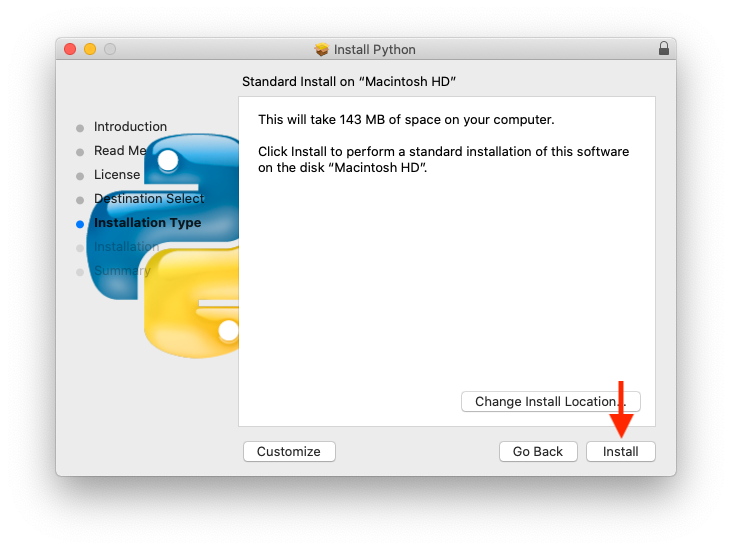
- You should now need to enter your password and Python will install (might take a minute). Afterwards, close and delete the installer.
- Now check to make sure it installed correctly. Open Terminal (you can find the app by going to the
Applications/Utilitiesfolder in Finder or by searching for it using Spotlight (pressCmd+spacebar, typeTerminal, then press Enter)). - Type
python3 --versionand hit Enter. It should returnPython 3.13.15, which means it worked!
L2b. Install Python (Windows)
- Download Python 3.13 (x86-64) from python.org then and run the installer file called
python-3.13.15-amd64.exe. - When the installation window pops up, check last box: "Add Python 3.13 to PATH".
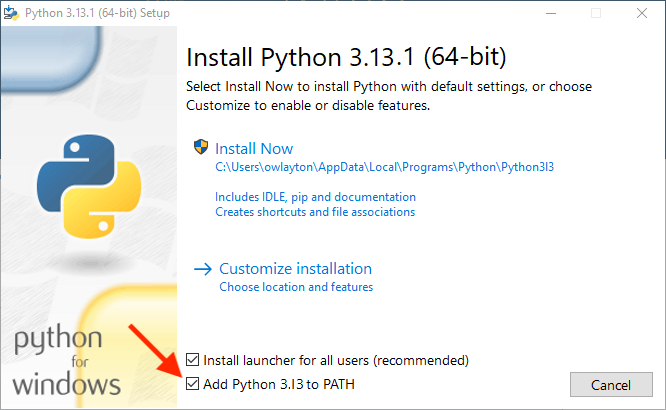
- Click "Install Now" at the top.
- Press WinKey+R to open the Run box.
- Type
cmdthen press Enter. - Type
py --version, then press Enter. It should print Python3.13.15, which means it worked!
L3. Sublime Text
I recommend using the same text editor to write your code for labs and projects as I use in class, which is called Sublime Text. Here are instructions how to install it for Mac and Windows PC users.
L3a. Install Sublime Text (macOS)
- Download Sublime Text.
- Unzip the file you downloaded by double clicking on it.

- You should see a file with a grey and orange called
Sublime Textin your Downloads folder. Drag it into your Applications folder:
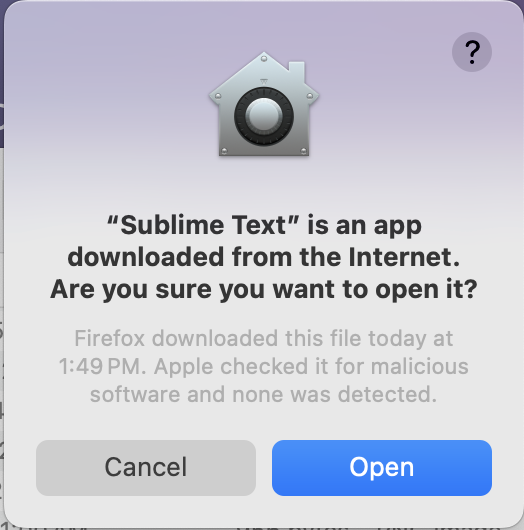
- Open the program. You will be asked if you are sure. Click "Open".
L3c. Install Sublime Text (Windows)
- Download Sublime Text and double-click the installer file to install it on your computer.
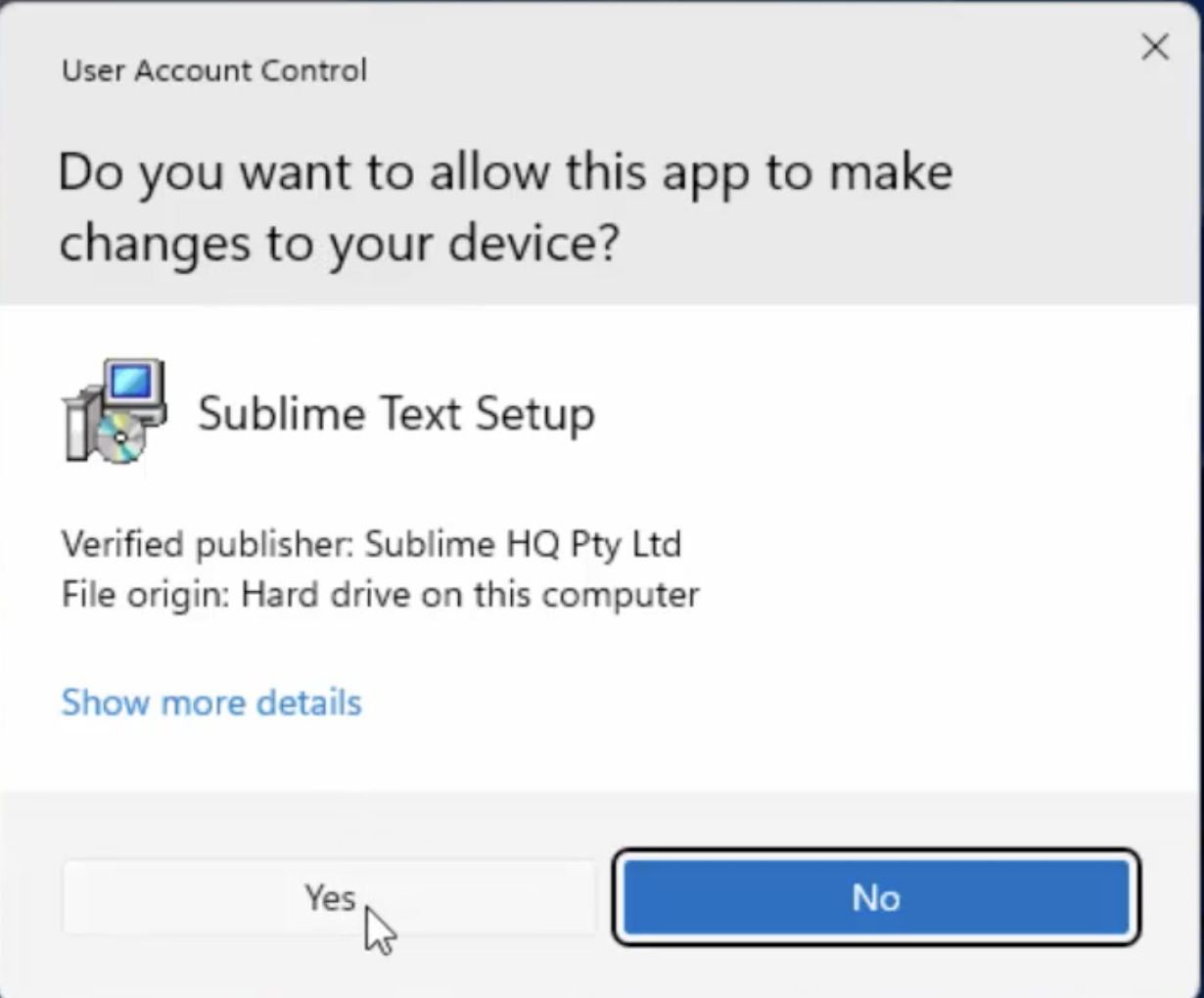
- Open the installer. You will be asked if you want to allow this app to make changes to your device. Click "Yes".
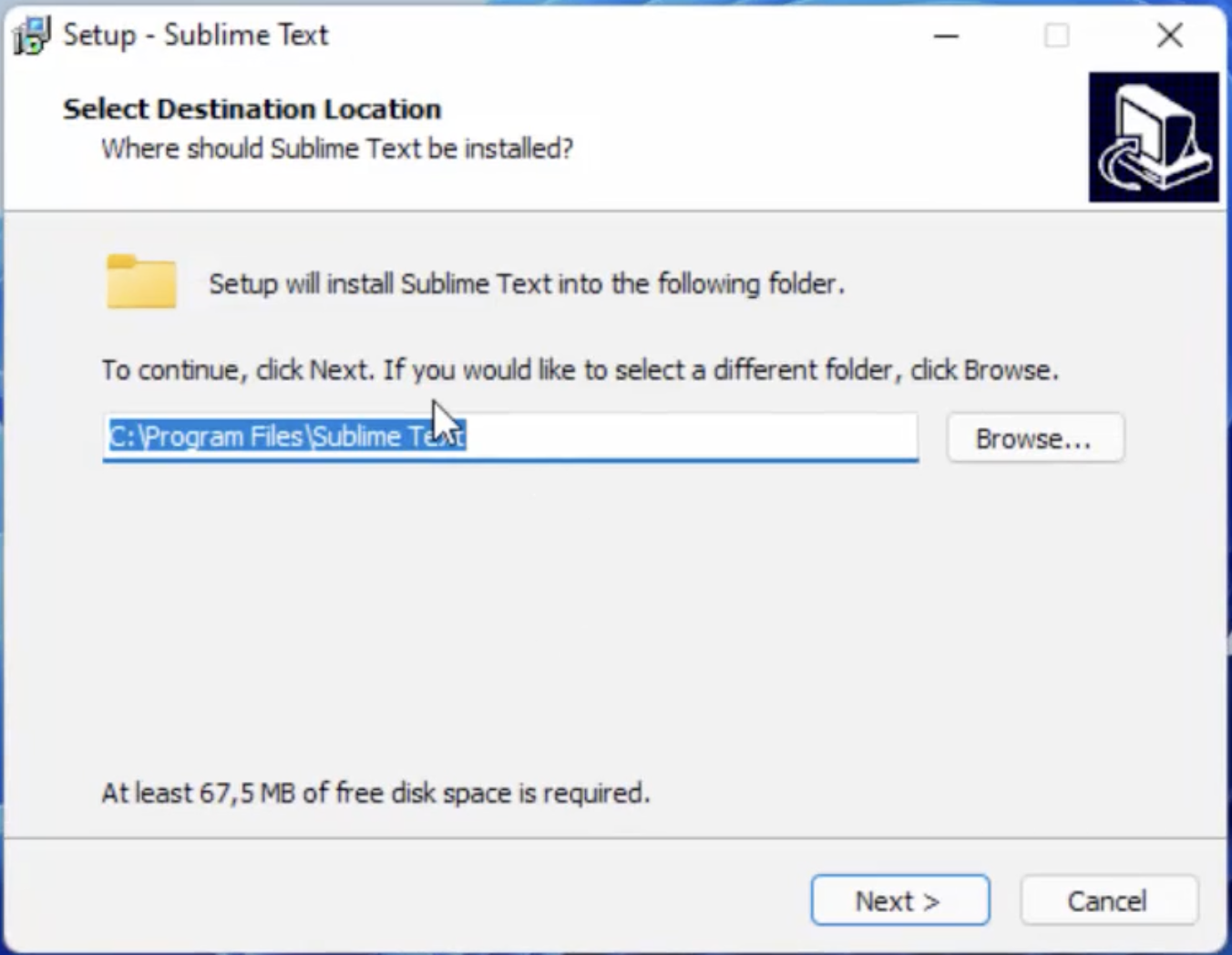
- When prompted to select destination location. Click "Next >".
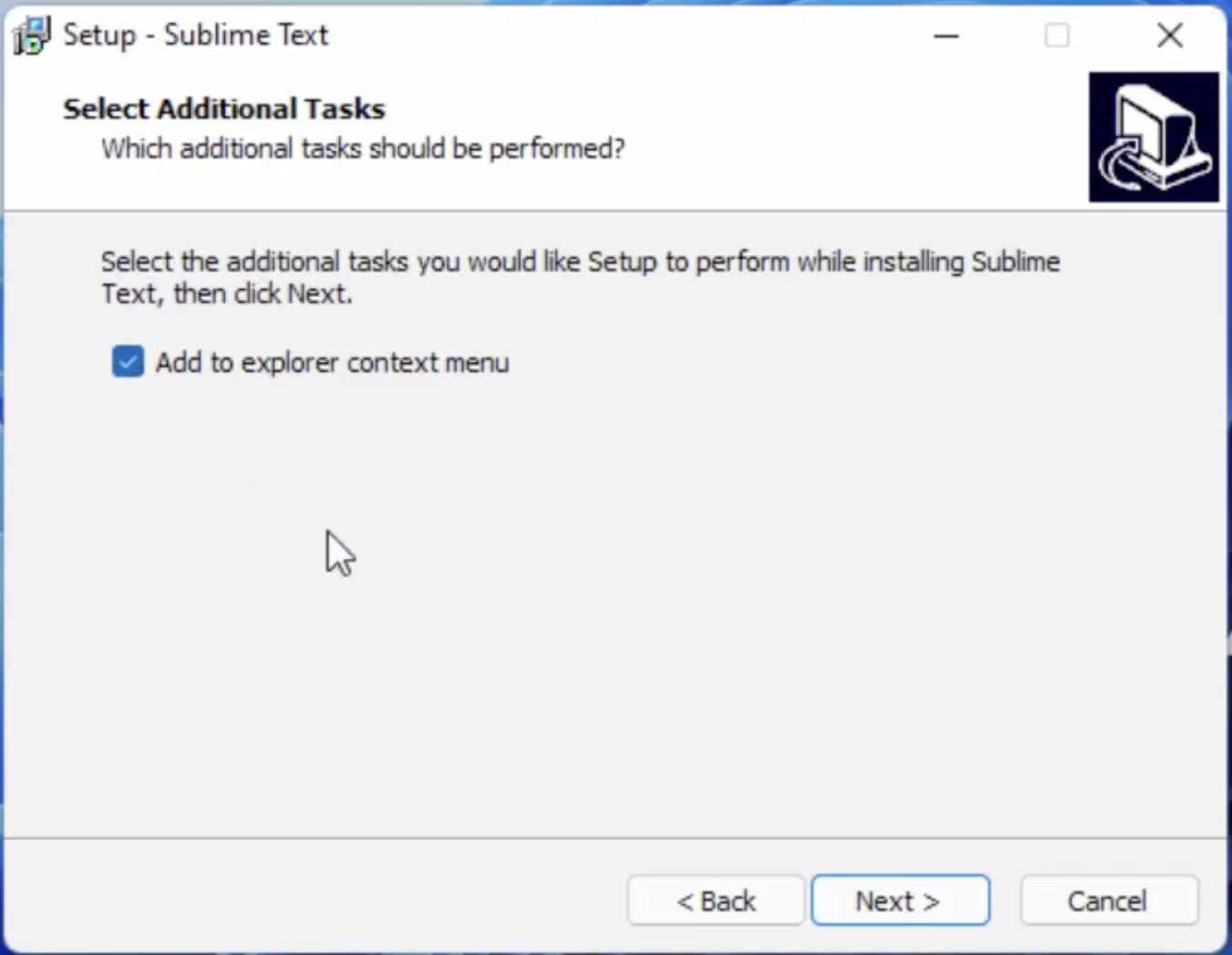
- When prompted to select additional tasks, you can optionally check "Add to explorer context menu", this allows you do open an entire folder instead of just one file. It is recommended but not required. Then click "Next >".
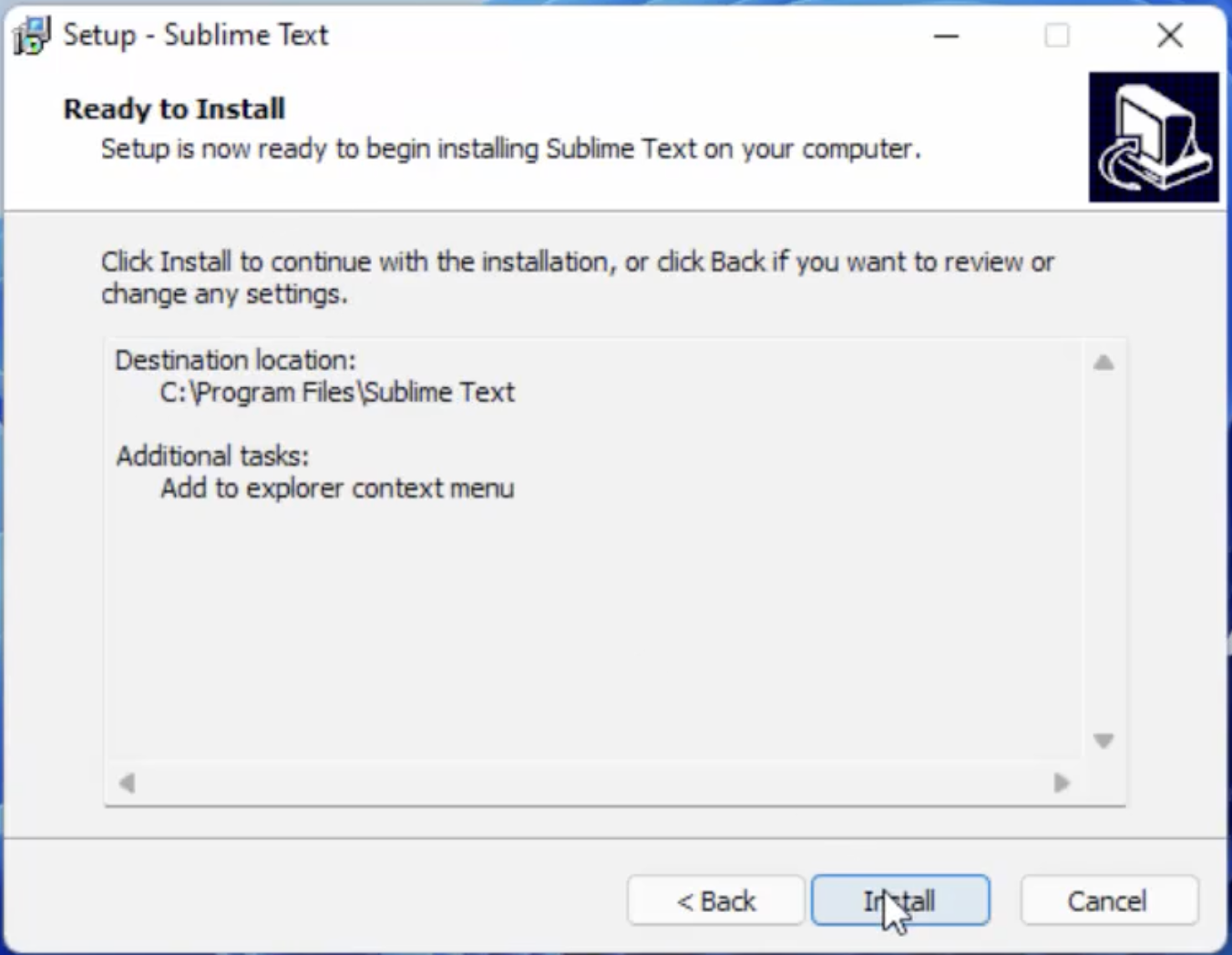
- When prompted "Ready to Install", click "Install".
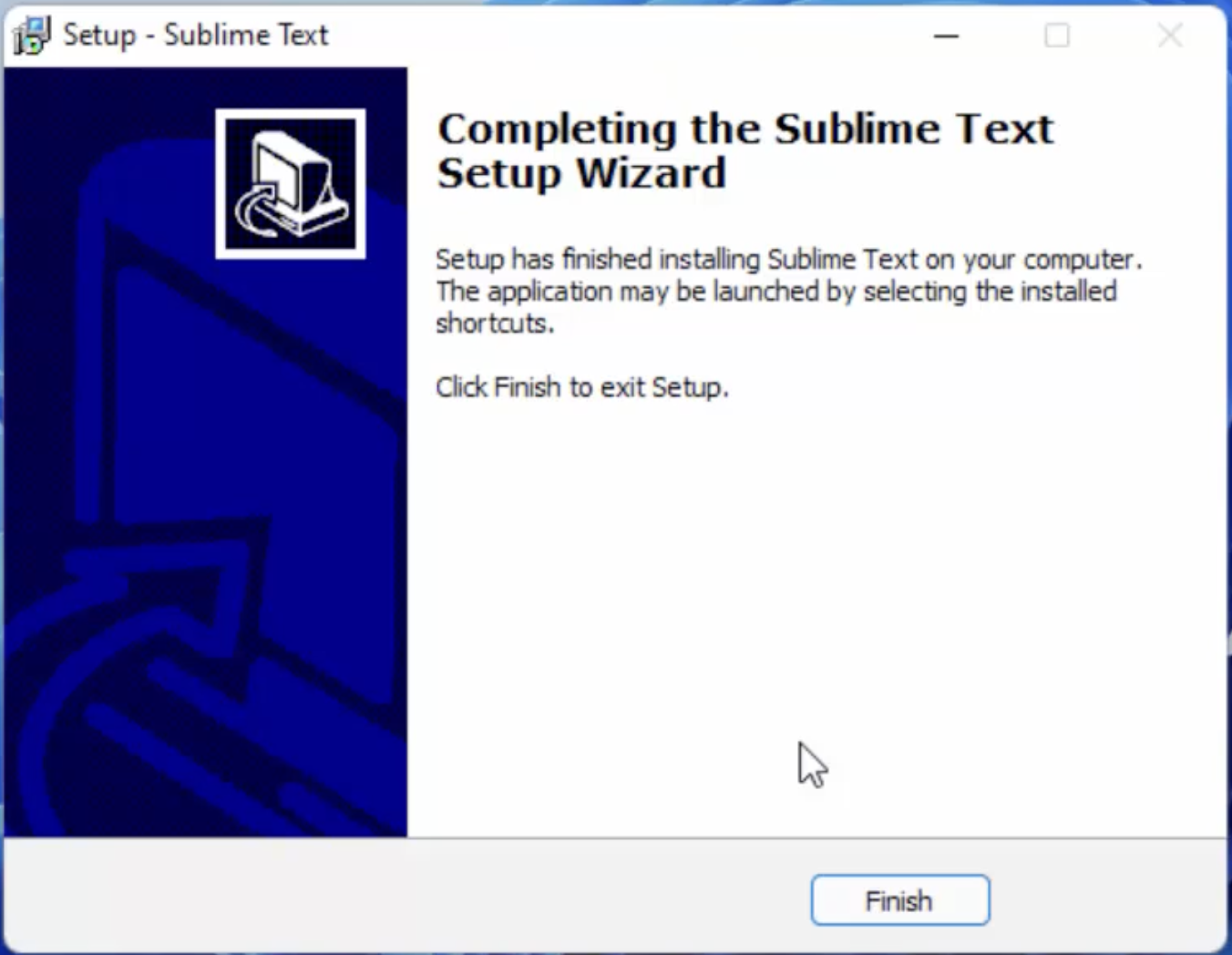
- When the install is complete, click "Finish".
L4. Show file extensions
To make sure that you can visually recognize code files, let's make sure that you can see file extensions (like .docx for MS Word files) on your computer.
L4a. Show file extensions (macOS)
- Go to Finder preferences by click on your desktop background, click Finder on top left corner of the screen then click
Preferences.... - Click
Advanced. - Make sure
Show all filename extensionsis checked.
L4b. Show file extensions (Windows)
- Open up Windows Explorer (e.g. Press Control+N after clicking on your Desktop background).
- Go to Folder Options:

- Click on the
Viewtab and make sure thatHide extensions for known file typesis unchecked.